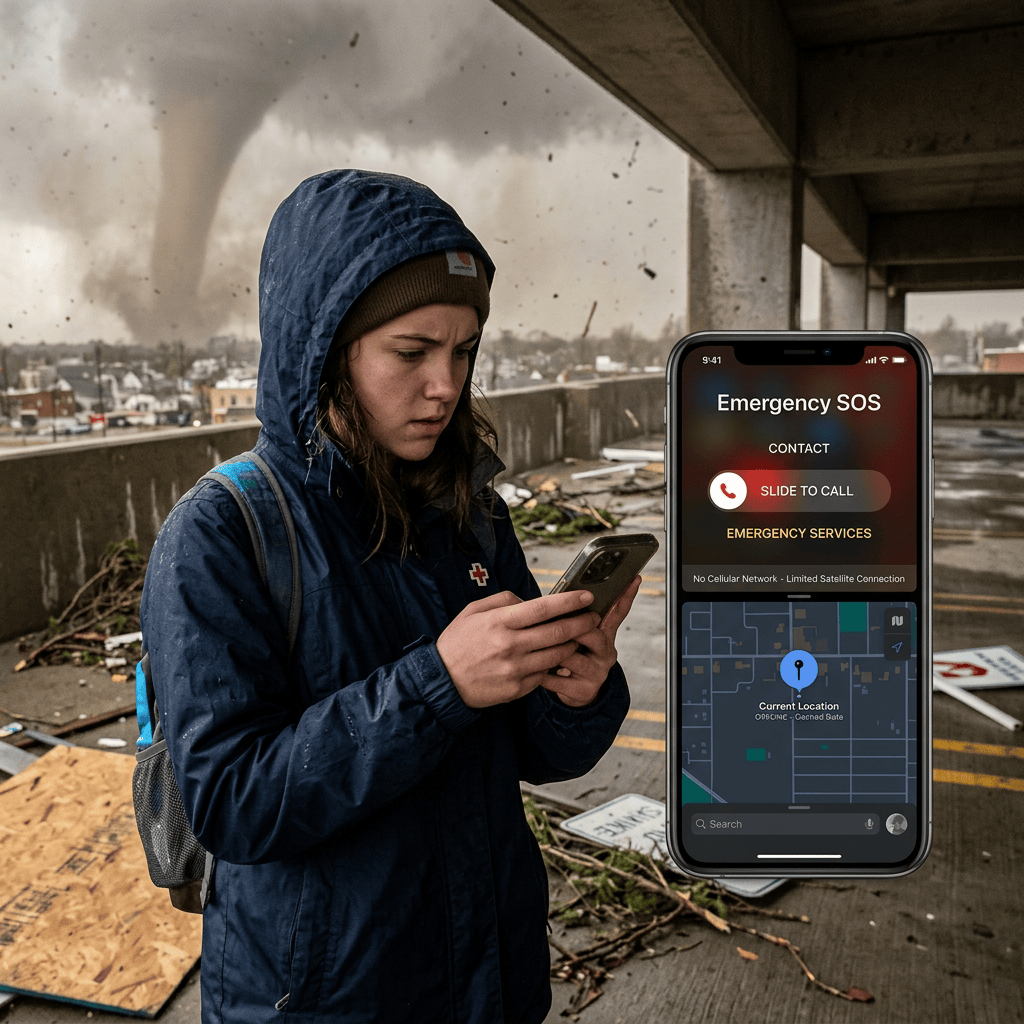
Have you ever experienced that sinking feeling when your phone drops to zero bars of signal in an unfamiliar place? Now imagine the ground beneath you begins to tremble, or an urgent flash flood warning blares through your neighborhood, followed by instant silence as the municipal power grid snaps off.
In those chaotic first minutes, clear thinking becomes nearly impossible. Your heart races, the room is pitch-dark, and panic sets in. You might scramble to remember an out-of-town relative’s phone number, struggle with wet fingers against a slick touchscreen, or discover that your favorite navigation app refuses to load without a cell tower nearby.
Here is the good news: the device already sitting in your pocket can act as an automated emergency kit. You do not need to be an engineer or a survivalist to set it up. With just a few minutes of quiet preparation today, your everyday phone can guide you through the unthinkable tomorrow.
Think of your phone’s built-in emergency features like a miniature Swiss Army knife stored inside a break-glass fire box in your home hallway.
On any ordinary Tuesday, that knife sits quietly tucked away. You do not think about it while sending text messages or browsing family photos. But the moment smoke fills the corridor or rushing water surrounds your porch, breaking the glass triggers four things at the exact same second: an alarm horn sounds to alert neighbors, a high-beam flashlight guides your footsteps, an emergency map of your neighborhood’s highest ground lands right in your hand, and an alert flies out to emergency responders and family members.
Best of all, you do not have to unlock a single door, remember a single combination, or search through a crowded drawer. Everything activates through simple, physical button presses that work by pure muscle memory, even in pitch-black conditions.
Why it is needed
- Save precious minutes when a rapid evacuation leaves no time to search through menus.
- Keep your family connected even when conventional telephone lines are overloaded.
- Navigate blocked or flooded streets without needing any internet connection.
- Ensure first responders know your allergies and blood type without ever unlocking your screen.
- Turn off distracting battery hogs automatically so your phone stays alive for days.
2. Simple Step-by-Step Guide
Set aside ten minutes today to walk through these five straightforward safeguards. Once completed, your phone will handle the heavy lifting automatically during a crisis.
Step 1: Set Up Your Medical ID and Emergency Contacts (iPhone)
First responders are trained to check an unconscious or injured person’s phone for medical information. You can make this available without giving anyone access to your photos or personal messages.
- Open the built-in Health app on your iPhone.
- Tap your profile picture or icon in the upper right corner.
- Tap Medical ID, then choose Edit.
- Enter important details, such as medications, severe allergies, and your blood type.
- Scroll down to Emergency Contacts and select your closest family members or friends.
- Make sure the toggle switch for Show When Locked is turned ON.
- Tap Done in the top corner to save your changes.
Step 2: Turn on Emergency SOS Hard Triggers (Android)
When your hands are shaking or covered in water, swiping across a glass screen is unreliable. Physical buttons work every time.
- Open your phone’s Settings menu.
- Scroll down and tap Safety & emergency (on Samsung Galaxy devices, look for Safety and emergency under Advanced features).
- Tap Emergency SOS and switch it ON.
- Confirm the quick-press action: pressing the physical Power button rapidly five times (on select Google Pixel devices, you can choose between three or five quick presses).
- Select Send info to emergency contacts so your current coordinates are dispatched immediately when the trigger activates.
Helpful Note for Different Phones: If your device is made by Motorola, OnePlus, or an older Samsung model, check your phone’s Settings > Advanced Features > Send SOS Messages to verify whether three clicks or five clicks are designated for emergency dispatch.
Step 3: Practice Using Satellite Messaging (iPhone 14 or Newer / Modern Android)
Newer smartphones can connect directly to satellites orbiting hundreds of miles above Earth when regular cell towers are damaged or submerged.
- Walk outside into an open space with an unobstructed view of the sky.
- Open Settings, then tap Emergency SOS.
- Scroll down until you see Emergency SOS via satellite.
- Tap Try Demo.
- Follow the on-screen graphics to practice aiming your phone toward a satellite. This demo trains your muscle memory without placing a real call to emergency dispatchers.
Step 4: Download Your Neighborhood’s Offline Map
During large-scale storms, navigation apps fail because cell towers become overwhelmed with traffic. Downloading your local area beforehand ensures your navigation works with zero cellular reception.
- Open Google Maps or Apple Maps.
- In Google Maps, tap your profile circle in the top search bar and choose Offline maps.
- Tap Select Your Own Map.
- Pinch and zoom the box until it covers your entire city and the surrounding escape highways (a 30- to 50-mile radius is ideal).
- Tap Download. In Apple Maps, tap your profile icon, choose Offline Maps, and tap Download New Map to save the designated area.
Step 5: Create a Simple Signal-Loss Battery Routine
When cell towers go dark, your phone burns through its battery rapidly by constantly searching at maximum transmission power for a signal. You can automate your phone to preserve battery life automatically.
- On iPhone: Open the built-in Shortcuts app, tap the Automation tab at the bottom, and tap the plus sign. Choose Low Power Mode or Cellular as your trigger. Set the action to turn your screen brightness down, activate Low Power Mode, and open your pre-written emergency family notes.
- On Android: Open Settings, tap Modes and Routines, and tap the plus icon to build a routine. Set the condition: If network signal drops to zero, then Turn on Maximum Battery Saver and switch display to Grayscale.
3. Everyday Life Hacks & Tips
- Lock Screen Rendezvous Wallpaper: Take a clear digital photo of an index card that lists your family’s chosen meeting address, your out-of-town contact’s phone number, and your blood type. Set that picture as your permanent phone lock screen wallpaper. Even if your touchscreen cracks or the display digitizer fails, anyone who picks up your device can read your rescue plan instantly.
- Save Emergency Web Pages for Offline Reading: Open your county’s evacuation route page or flood map in your web browser, tap the share button, and choose Add to Reading List on iPhone or Download Page on Android. You will be able to read all of the instructions later with zero cell service.
- Switch to Older Cell Bands During Tower Jams: When thousands of people try to make calls at the exact same moment, the modern 5G network jams first. Open your phone’s cellular settings and switch your connection type from 5G to LTE or 4G. Older frequencies often retain enough trickle bandwidth to push through text messages when modern bands grind to a halt.
- Use Quick Physical Lockdown Shortcuts: On both iPhone and Android, holding down the side power button and the volume down button for two seconds displays your emergency sliders while immediately locking down your biometric scanners. This means nobody can open your device without your passcode, protecting your personal data during chaotic situations.
- Keep an Accessibility Double-Tap Alternative Ready: For individuals with limited hand strength or arthritis who find rapid physical clicking difficult, enable your phone’s accessibility back-tap feature. In your phone’s accessibility settings, you can assign a gentle double-tap on the back of the phone to trigger your flashlight or emergency contact message.
4. The 5 Core Benefits Breakdown
Time Saved
In a flash flood or earthquake, ten minutes spent fumbling through locked menus, typing out long text updates, and waiting for slow websites to refresh can be the difference between escaping safely and being stranded. Pre-configured triggers compress that entire sequence into a single physical gesture.
Peace of Mind
Disaster anxiety comes from uncertainty. Knowing that your most critical health details, allergy alerts, and real-time location will be delivered automatically to your designated contacts takes an immense cognitive burden off your shoulders when alarms start blaring.
Privacy & Safety
Keeping your emergency details accessible does not mean opening your digital life to strangers. Medical ID profiles and emergency dispatch alerts are carefully isolated. Strangers can view your emergency contact’s phone number and your allergy list directly from the lock screen, but all of your personal photos, banking apps, and text threads stay locked behind heavy encryption.
Easy Collaboration
Natural disasters often scatter families across workplaces, schools, and transit routes. Automated location pings and pre-saved offline meetup points ensure that every member of the household knows where to gather, eliminating conflicting plans and panicked phone calls on clogged networks.
Total Simplicity
Technology is only useful during a crisis if it works when you are cold, shaking, or in the dark. By tying life-saving workflows to physical power button clicks and automated battery triggers, you remove the need for steady hands or technical know-how.
5. Real-World Scenario: Midnight Flash Flood
At 2:15 AM on a stormy Tuesday, Sarah was awakened by the roar of churning water outside her bedroom window. A nearby creek had broken its banks, sending a foot of muddy water rushing across her driveway. Before she could flip on the bedside lamp, the neighborhood transformer exploded with a bright flash, cutting power to the entire block.
Sarah’s heart jumped into her throat. Her cellular connection showed zero bars. In the past, Sarah might have lost ten or fifteen precious minutes trying to get an online map to load, searching for her out-of-state sister’s phone number in the dark, or hunting for a flashlight.
Instead, Sarah picked up her phone and rapidly clicked the side power button five times.
Her phone immediately launched its emergency routine: the rear LED flashed on at maximum brightness, illuminating the flooded hallway. A high-contrast card appeared on screen with her predetermined evacuation high-ground coordinates. Simultaneously, her phone began transmitting an emergency alert with her last known coordinates via satellite.
Because Sarah had downloaded her regional map three months prior, her navigation app pulled up an offline route to the nearest community center without needing a single byte of cellular data. Sarah gathered her pet, walked out to her car, and drove to safety along high-ground avenues before the street below became impassable. Total time from waking up to safe departure: under four minutes.
Key Takeaways
- Built-in tools like Emergency SOS and Medical ID do not cost extra money or require new hardware, but you must enable them before an emergency occurs.
- Downloading maps of your city for offline use guarantees that you can navigate road closures even when cellular networks fail.
- Physical button sequences (such as pressing the power button five times) allow you to summon help and share coordinates without looking at the screen.
- Satellite messaging on newer phones lets you communicate with rescue services when cell towers are completely offline.
- Setting up a quick battery-saving routine prevents your phone from draining its power trying to search for lost cell towers.
Conclusion
We tend to think of our smartphones primarily as entertainment centers, cameras, or portable offices. But beneath the glossy glass and colorful icons lies a powerful, reliable survival tool capable of protecting you and your family when everything else fails.
You do not need to tackle this all at once. Pick one step tonight: fill out your Medical ID or download your neighborhood’s offline map while relaxing on the couch. That five-minute investment could easily turn out to be the most valuable thing you ever do on your device.
Have you configured your emergency settings or used offline maps during an unexpected storm? Share your personal experiences and preparation tips in the comments below!


Leave a comment