Ever struggled to draft the perfect email? Whether you’re writing a quick note to a colleague or a formal proposal to a client, starting from scratch can be time-consuming. Fortunately, Google Docs Building Blocks make email drafting easier and more efficient.
In this guide, we’ll show you how to use this powerful feature to create well-structured emails effortlessly—whether you’re a casual user or a business professional.
What Are Google Docs Building Blocks for Emails?
Google Docs Building Blocks are pre-formatted templates that help you draft emails directly in Google Docs. With just a few clicks, you can insert a structured email format, customize it, and send it straight from Docs to Gmail.
This feature is perfect for:
✔ Casual users who want a simple way to write polished emails.
✔ Business professionals who need consistency and efficiency in communication.
✔ Teams looking for a collaborative way to draft and refine emails before sending.
🚫 What You’re Missing Without Google Docs Email Building Blocks
🔹 Time Efficiency: Manually formatting emails in Gmail takes longer compared to using a structured building block in Docs.
🔹 Collaboration: In Gmail, you can’t easily get real-time feedback or suggestions from colleagues before sending an important email.
🔹 Error Reduction: Google Docs allows you to refine and proofread emails before sending, reducing typos or miscommunication.
🔹 Version Control: Gmail doesn’t save different drafts for comparison, whereas Google Docs lets you track changes before finalizing.
🔹 Reusability: No quick access to reusable templates—each email must be manually written from scratch.
🔹 Seamless Gmail Integration: Without this feature, you need to copy-paste emails into Gmail instead of seamlessly sending them directly from Docs.
🚀 How to Draft Emails Using Google Docs Building Blocks
1️⃣ Open Google Docs:
Go to Google Docs and open a new document.
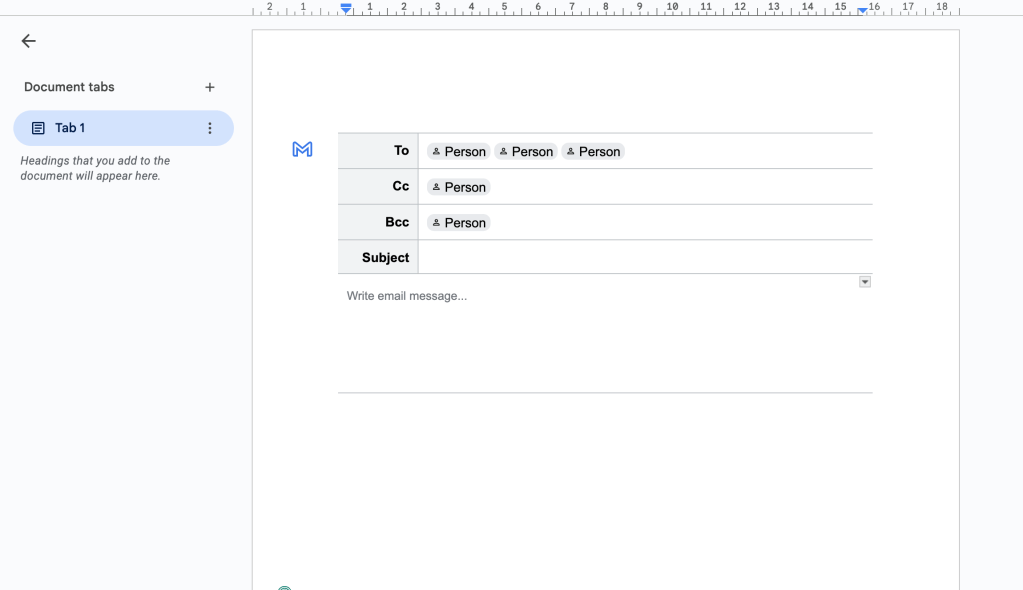
2️⃣ Insert an Email Draft Block:
- Click @ in the document and type “Email draft.”
- Select the Email draft building block from the dropdown.

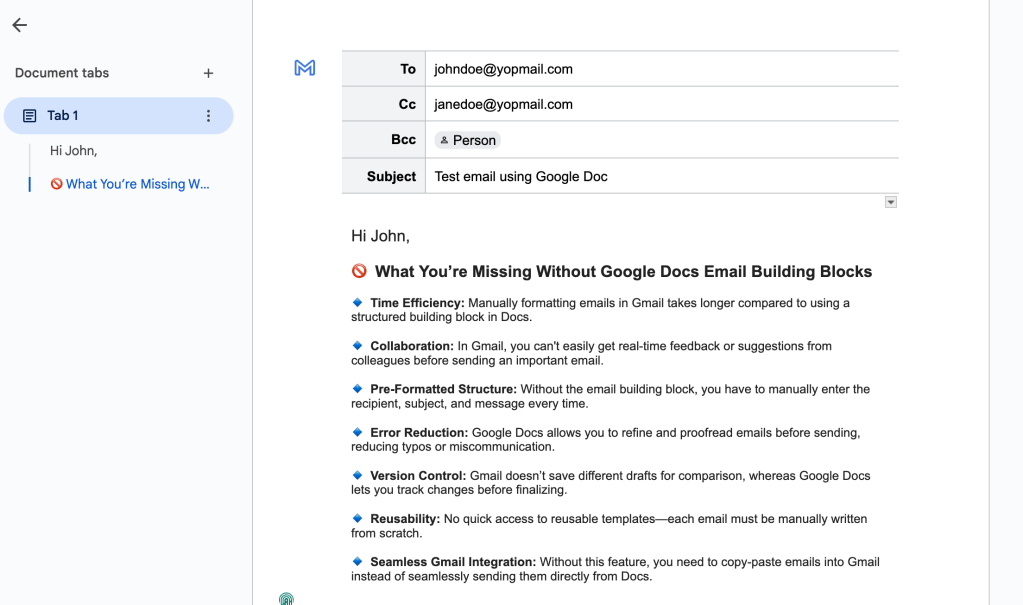
3️⃣ Customize Your Email:
- Fill in the To, Cc, Bcc, Subject, and Body fields.
- Format your email as needed, just like in Gmail.
4️⃣ Send Directly from Google Docs:
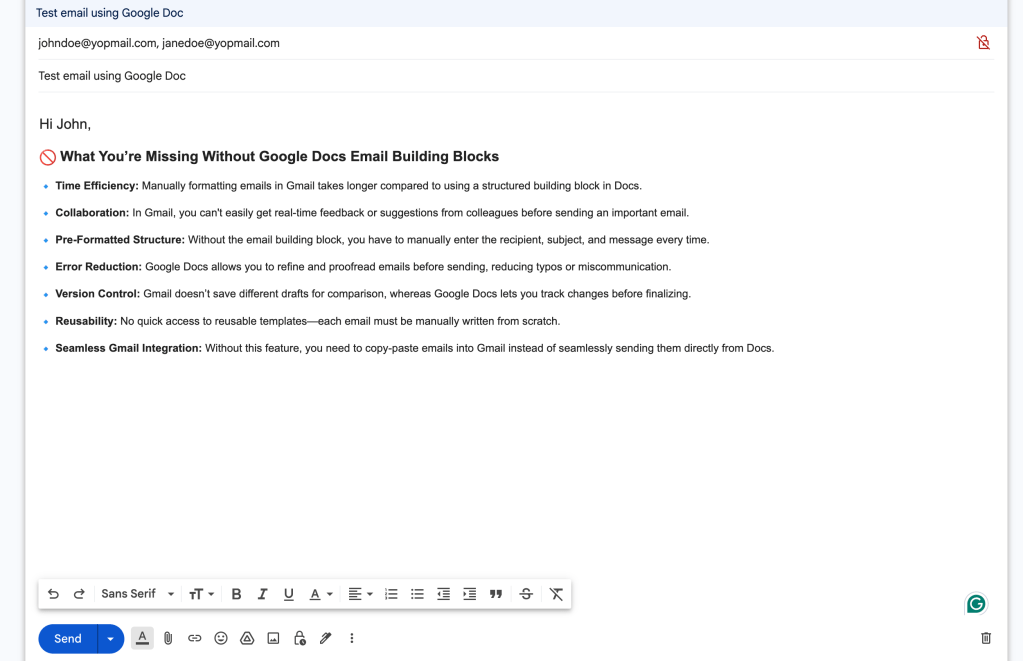
- Click the Gmail icon in the top-right corner of the email block.
- Your email will open in Gmail with all details pre-filled.
- Make final edits (if needed) and hit Send!
Tip: You can also use collaborative editing in Docs to get feedback on your email before sending.
💡 Pro Tips for Using Google Docs Email Drafts
✅ Save time with templates: Create reusable email drafts for common messages like meeting invites, follow-ups, or project updates.
✅ Collaborate seamlessly: Get team input on important emails before sending—perfect for proposals or customer communication.
✅ Use AI-powered suggestions: Google Docs offers smart writing suggestions to refine your tone and clarity.
✅ Maintain a professional tone: Business professionals can ensure emails follow company branding and style guidelines.
✅ Avoid email mistakes: Reviewing in Docs before sending can help catch typos or miscommunication.
🌍 Real-World Use Cases
✉️ Casual Users: Quickly draft personal emails or informal work messages before sending.
📧 Business Professionals: Ensure consistent, well-structured communication for clients, partners, or stakeholders.
👥 Teams & Collaborators: Work together on important emails, like announcements or proposals, before sending them out.
🚀 Marketing & Sales: Draft and refine outreach emails with input from your team before sending to leads or customers.
Google Docs Building Blocks for Email Drafting are a game-changer for writing efficient, error-free emails. Whether you’re a casual user looking for convenience or a business professional aiming for polished communication, this feature can help streamline your workflow.
Try it out today and experience a smarter way to draft emails! Have you used Google Docs for email drafting? Share your thoughts in the comments below!
 GoBoolean
Leave a comment