Oops! Sent That Too Soon?
We’ve all had that heart-stopping moment—you hit “send” on an email, and instantly realize you’ve made a mistake. Maybe there’s a glaring typo, you forgot the attachment (again), or worse, you sent it to the wrong person. Cue the panic.
But what if you had a magical safety net to catch those mistakes? Enter the Undo Send feature—the unsung hero of modern email. In this blog, we’ll explore what it is, how to use it, and some pro tips to make the most of it.
What Is the Undo Send Feature?
Think of Undo Send as your email’s emergency brake. It’s built into many popular email platforms like Gmail and Outlook, giving you a small window of time after hitting “send” to pull the plug before your message reaches its destination.
Whether it’s a hasty typo, a forgotten attachment, or an emotionally charged email you regret instantly, Undo Send lets you reclaim that email before it causes embarrassment (or worse).
How to Use the Undo Send Feature
Gmail:
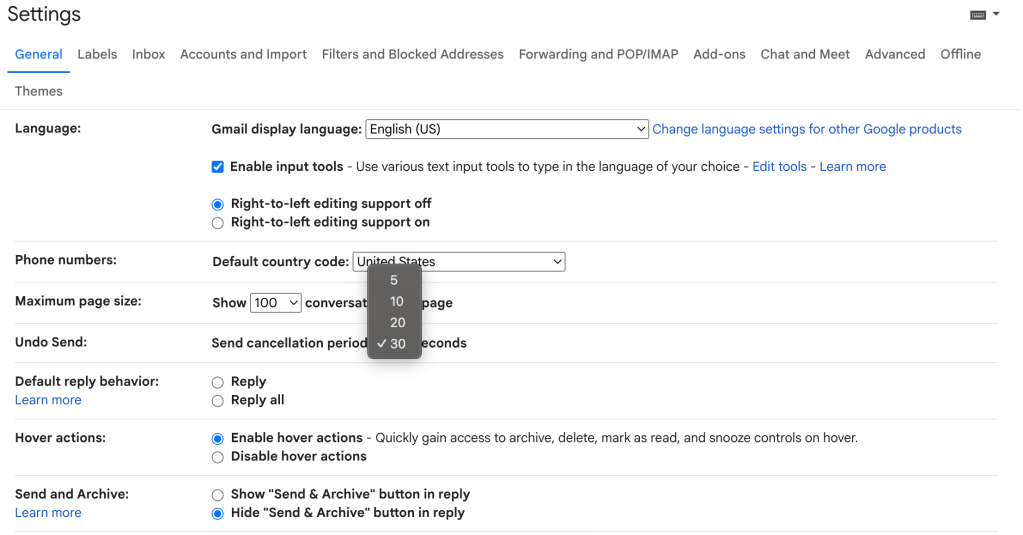
- Turn It On: Click the gear icon (Settings) > See all settings > General tab > Undo Send. Choose a cancellation period (5, 10, 20, or 30 seconds).
- Compose Your Email: Write your message like usual.
- Hit Send: After sending, look for a notification at the bottom-left saying “Message sent. Undo?” Click Undo within your chosen timeframe, and voila—your email is back in draft mode.
Outlook:
- Enable : Go to Settings and search for Undo Send (location varies by version). Enable it and set your preferred timeframe (up to 10 seconds).
- Send Your Email: Hit send like normal.
- Undo: A small notification will appear briefly. Click Undo quickly before it disappears.

Other Email Providers:
Not all email clients have this feature, but many do. Check their support docs or settings to see if it’s available.
Pro Tips for Mastering Undo Send
- Don’t Rely on It Alone: Always double-check your email before sending. Reading it out loud helps catch errors.
- Max Out the Timer: If your email client allows, set the Undo Send window to the maximum time. More time = more chances to catch mistakes.
- Use Email Previews: Previewing emails before sending can catch issues early, reducing the need for a frantic undo.
- Know Its Limits: Once the undo window passes, the email is gone for good. No tech magic can bring it back after that.
Real-Life Scenarios Where Undo Send Saves the Day
- Typos Galore: Spotted a glaring mistake right after sending? Undo Send to the rescue.
- Wrong Recipient: Realize you just emailed your boss instead of your friend? Hit Undo fast!
- Missing Attachments: Forgot to attach that file? Undo, attach, and resend like a pro.
- Revising Tone: Sent an email in the heat of the moment? Undo gives you a chance to cool down and rephrase.
Wrapping Up
The Undo Send feature might be small, but it’s mighty. It offers a second chance when you need it most—saving you from embarrassing blunders, misunderstandings, and more.
So, if you haven’t already, go enable it now. Trust me, future-you will thank you.
Have a “thank goodness for Undo Send” story? Share it in the comments below—we’d love to hear it!
 GoBoolean
Leave a comment