Managing a flood of emails can be overwhelming, especially when you’re juggling work, personal, and promotional messages. Gmail’s Preview Pane (or Reading Pane) is a game-changing feature designed to save you time, enhance response efficiency, and streamline your email workflow.
In this guide, we’ll explore why the Gmail Preview Pane is a must-use tool, its benefits, how to enable it, and provide a real-life example of how it can improve productivity.
Why Use Gmail’s Preview Pane?
If you’re dealing with a high volume of emails daily, navigating through them efficiently becomes critical. The Gmail Preview Pane allows you to review emails without switching screens, helping you stay focused and productive.
By enabling this feature, you can:
- Reduce time spent on email management: No more opening and closing emails repeatedly.
- Enhance workflow efficiency: Process emails quickly with fewer clicks.
Key Benefits of the Gmail Preview Pane
- Minimize Distractions
- Eliminate the need to switch back and forth between emails and your inbox.
- Keep everything on a single screen, reducing mental fatigue.
- One Screen for Reading and Writing
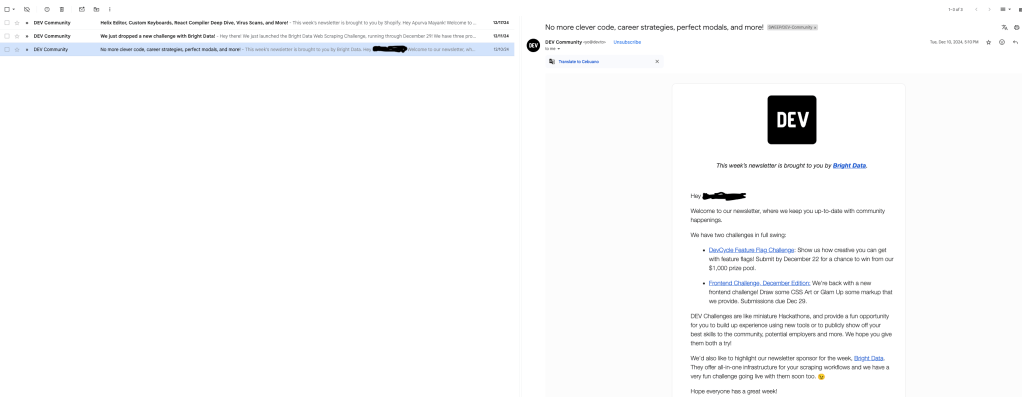
- View important emails while keeping your inbox visible on the side.
- Compose or respond to emails without losing context.
- Faster Decision-Making
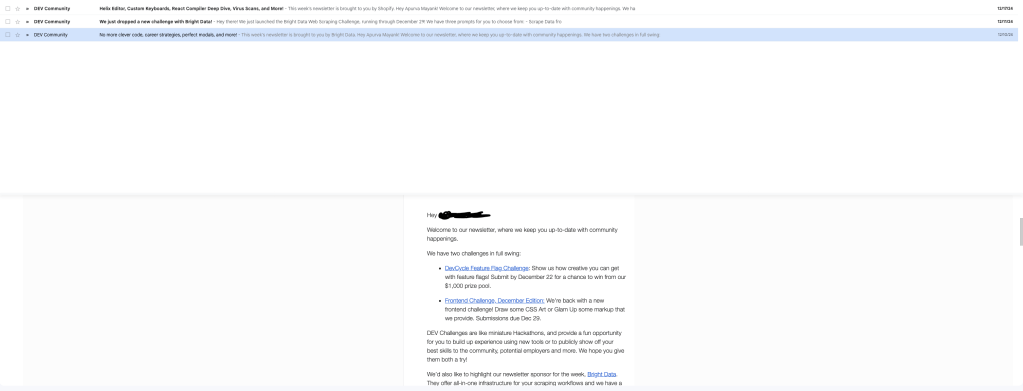
- Preview emails alongside the inbox to quickly decide whether to mark, archive, delete, or respond.
- Speed up your email triage process, freeing up time for other tasks.
How to Enable Gmail’s Preview Pane
Activating the Gmail Preview Pane is simple and takes only a few steps:
- Open Gmail and click on the Settings (gear icon) in the top-right corner.
- Select See All Settings from the dropdown menu.
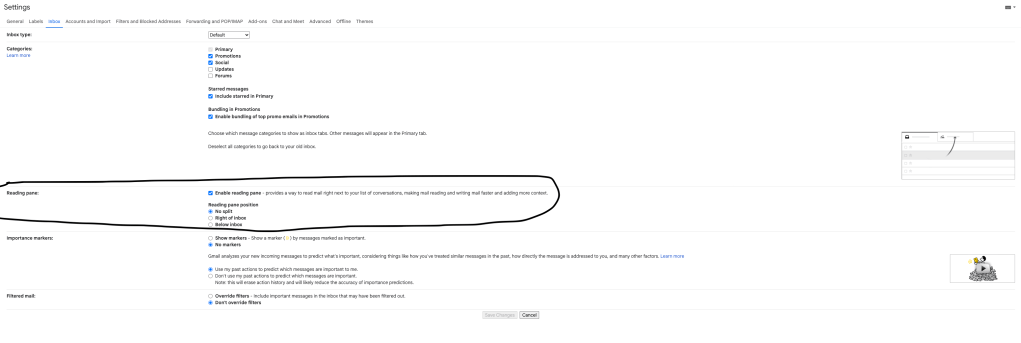
- Navigate to the Inbox tab and scroll down to the Preview Pane section.
- Check the box for Enable Preview Pane and click Save Changes at the bottom.
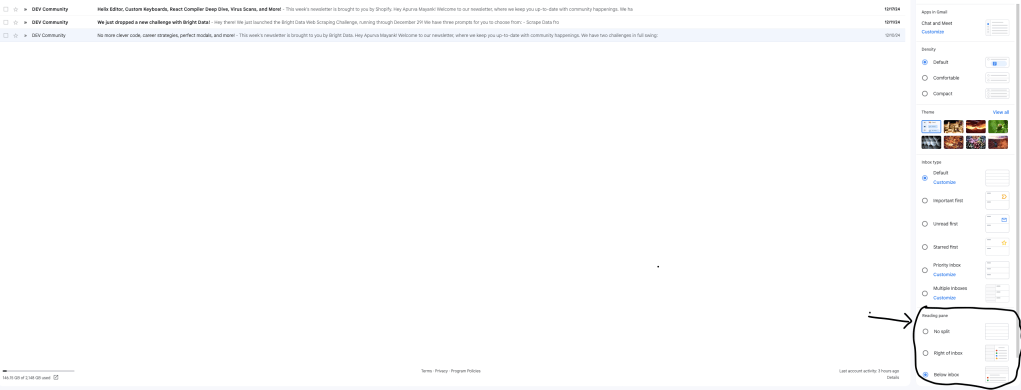
- Use the toggle in the toolbar to select your preferred layout:
- Vertical Split: Displays the preview pane to the right of your inbox.
- Horizontal Split: Displays the preview pane below your inbox.
Use Case: How the Gmail Preview Pane Boosts Productivity
Scenario:
Sarah is a marketing manager who receives over 200 emails daily. Her inbox is filled with team updates, client inquiries, and promotional emails.
Challenge:
Sarah found it time-consuming to open each email, respond, and return to the inbox, often losing track of critical messages in the process.
Solution:
By enabling Gmail’s Preview Pane, Sarah improved her workflow:
- She used the vertical split view to read emails while keeping her inbox visible.
- With just a glance at the preview, she could identify emails requiring immediate responses and archive unimportant ones.
- Sarah also flagged emails needing follow-up directly from the preview pane, reducing her response time by 50%.
Result:
Sarah’s email management became more streamlined, allowing her to focus on high-priority tasks without the constant distraction of an overflowing inbox.
Gmail’s Preview Pane is a simple yet effective feature that helps you:
- Save time: Quickly review emails without switching screens.
- Stay focused: Minimize distractions by managing emails in a single view.
- Enhance productivity: Process emails faster and more efficiently.
Enable Gmail’s Preview Pane today and experience the difference in how you manage your inbox. Pair it with Gmail filters and labels for the ultimate productivity boost!
 GoBoolean
Leave a comment